Users and Roles
Is there a separate app for students, prospects, and candidates?
What is the difference between the mobile app and the web app?
What is the difference between the roles in mobile app users and web app users?
I already have a Rakuna account but have never used the mobile app, how do I get started?
How do I set up a mobile-only user?
How can I add new recruiters to my organization?
Can I add or remove users at any time?
Is there a separate app for students, prospects, and candidates?
Rakuna Recruit is primarily meant to be used by companies participating in event recruiting. Hence, there is no separate app for students, prospects and candidates. The only way for them to interact with the app is by leaving feedback via the Post-event Survey form after a recruiting event.
What is the difference between the mobile app and the web app?
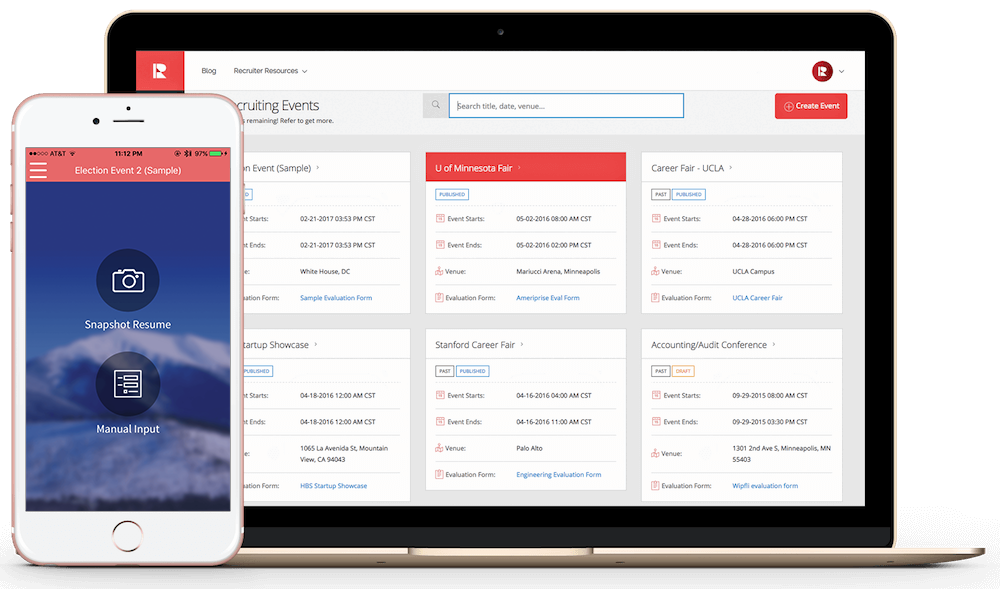
The mobile app is meant to be used at recruiting events. It allows the user - recruiters and companies’ representatives - to capture prospects’ information, log in candidates’ evaluation, and sync the information to the web app.
The web app, on the other hand, allows the recruiting team to handle everything outside of events such as managing team members, creating events and forms, storing the candidate’s information, reviewing event reports and metrics, and more.
What is the difference between the roles in mobile app users and web app users?
Mobile app users are usually the companies’ representatives who show up at career fairs and recruiting events to engage with potential candidates, whereas Web app users tend to be recruiting team members and admins who handle behind-the-scene tasks such as setting up interview questions for a specific event, managing follow-up emails, and tracking candidate’s information from events.
For more detailed information, please check Organization Permission Levels.
I already have a Rakuna account but have never used the mobile app, how do I get started?
If you have already signed up with Rakuna, download our free app from the Apple or Android store, enter your username and password, and you’re in!
How do I set up a mobile-only user?
To set up a mobile-only user, when sending the invitation to join the organization, the Admin must select the “Mobile” permission level. After accepting the invitation, the new user can use the login details to log into the mobile app and operate as a mobile-only user.
How can I add new recruiters to my organization?
- Navigate to “Settings,” then to “Team Directory;”
- Click “Invite New Users” on the top right corner, enter email and permission level of the new recruiter and click “Send an Invitation" button;
- The new member will receive an invitation email that contains a redirect link to set up a new password, followed by a login screen.
Can I add or remove users at any time?
Only Admin can add or remove users from the organization by going to the “Team Directory” section of the Admin Settings Menu.