Create a Post-Event/Interview Email Template
How do I integrate specific “Custom Fields” into messaging?
What is the difference between a custom template and a default template?
How do I track the status of emails sent to my candidates?
Automated Post-Event/Interview Email Messaging takes care of automated mass communication with all prospective candidates after an event or interview is over. With different templates, recruiter can send personalized emails to each prospective candidate to keep him or her updated throughout the recruiting process.
- Go to "Messaging"
- Click “New Template” to create a new post-event/interview email template
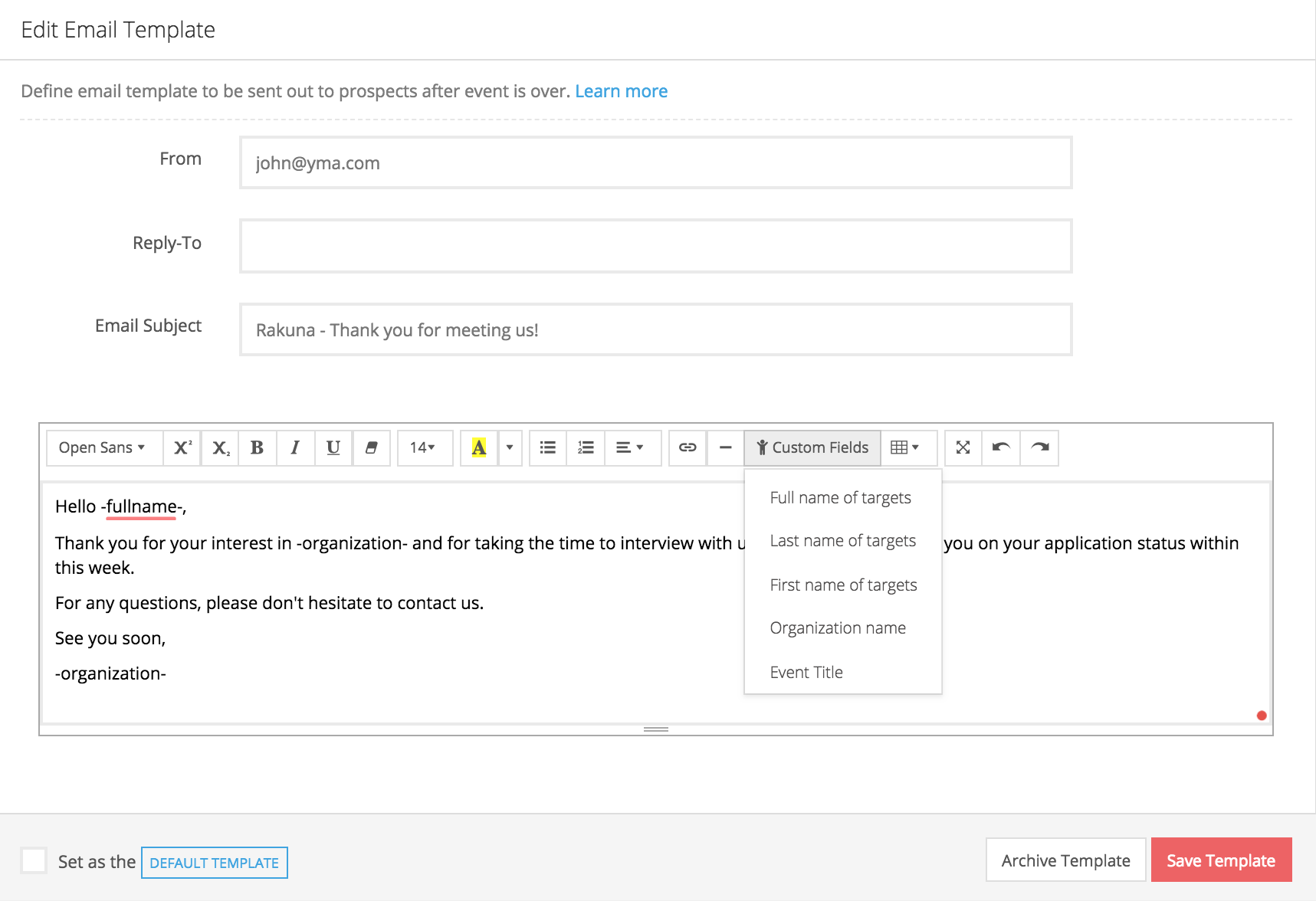
- Fill in “From,” “Reply-To,” “Email subject,” and “Email content.” In the “Email Content” section, utilize “Custom Fields” to automatically generate candidate’s information per email (First name, Last Name, Organization Name, Event Title)
- Click “Save Template” to save template
How do I integrate specific “Custom Fields” into messaging?
You can personalize each message sent to each candidate by clicking drop down box that says “Custom Fields”. Choose the location in the email content you would like to place the custom field (First name, Last Name, Organization Name, Event Title) and click on the option to insert.
What is the difference between a custom template and a default template?
The default template, by default, is a general email template pre-created by Rakuna for your reference. You can either edit its content or set another custom template that you have created, as the default. Once a template is set to default, it will be automatically selected when you create a new event.
How do I track the status of emails sent to my candidates?
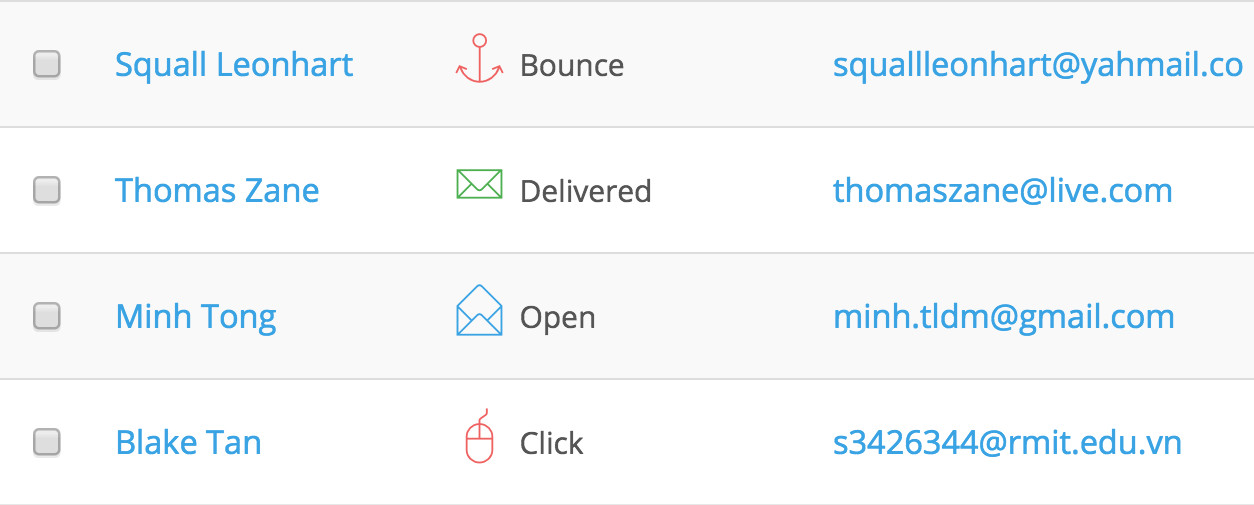
Recruiters can track emails sent to candidates using Messaging Status. This feature allows you to view the recipient’s interaction with your email via four (4) categories: Bounce, Delivered, Open, and Click.
To view the messaging status of an event:
- Go to “Event”
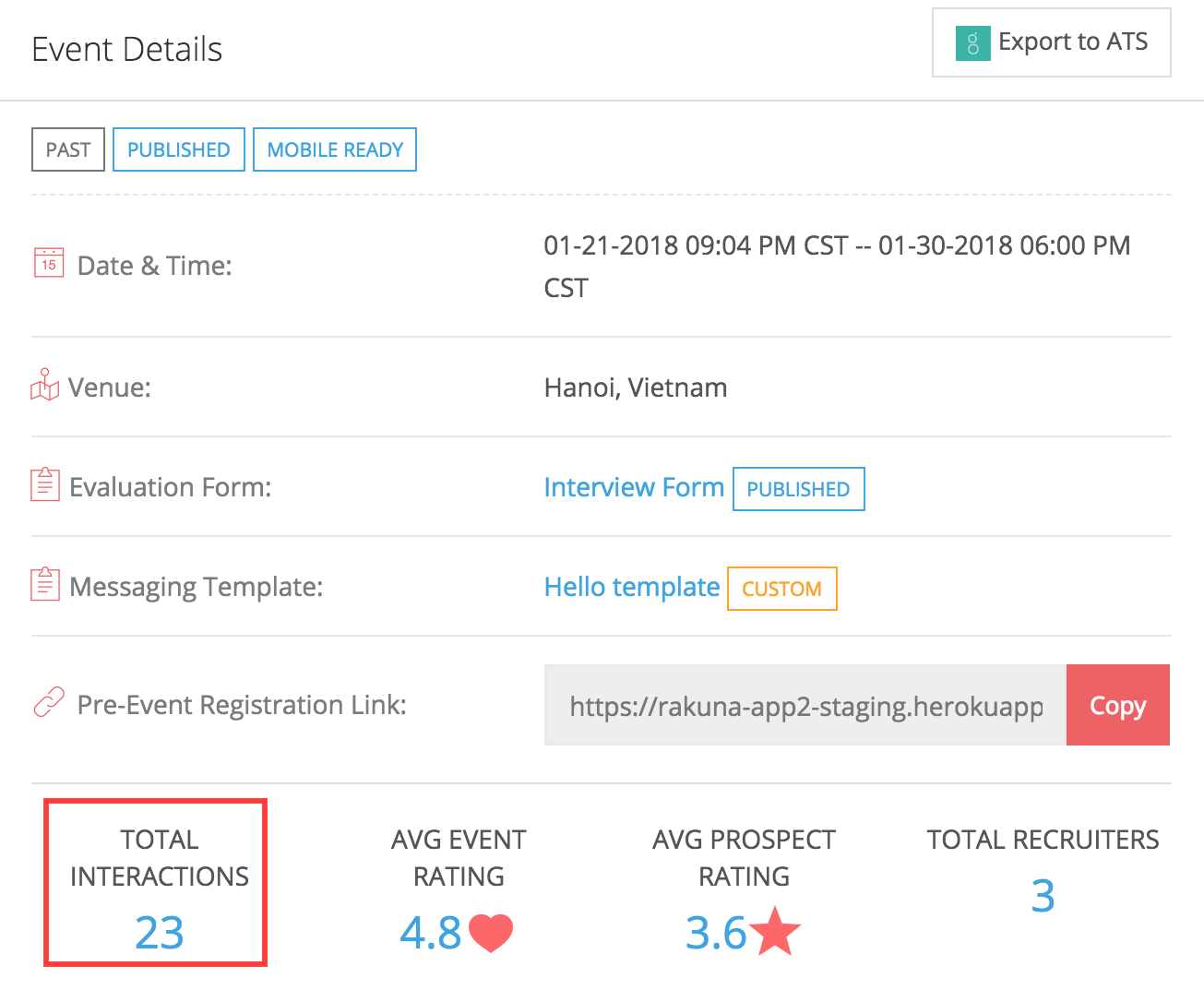
- Click the number of Total Interactions
- Find the messaging status in the “Messaging” column