Edit a Candidate's Information
How can I add or remove tag to/from each prospect?
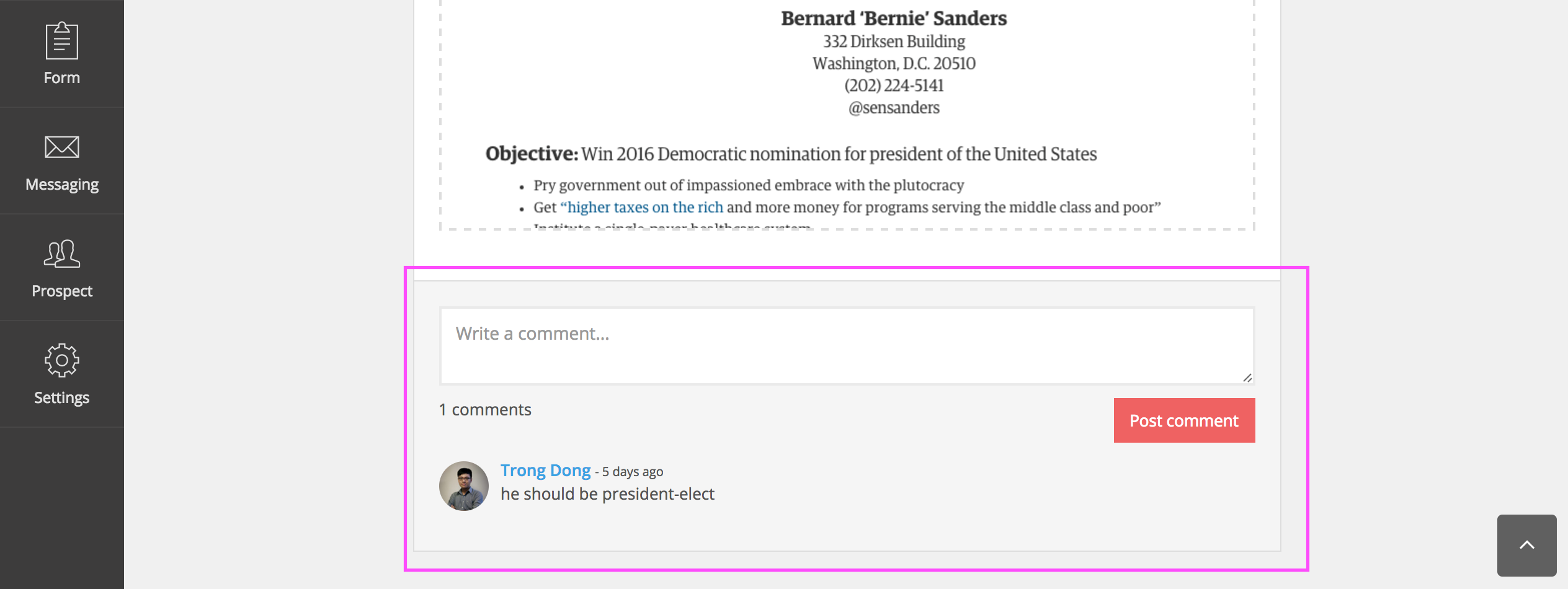
How can I add comment for each candidate?
- Open the desired candidate’s corresponding event and scroll through “My Candidates”
- Edit the candidate’s information
- Click “Done” to save new changes.
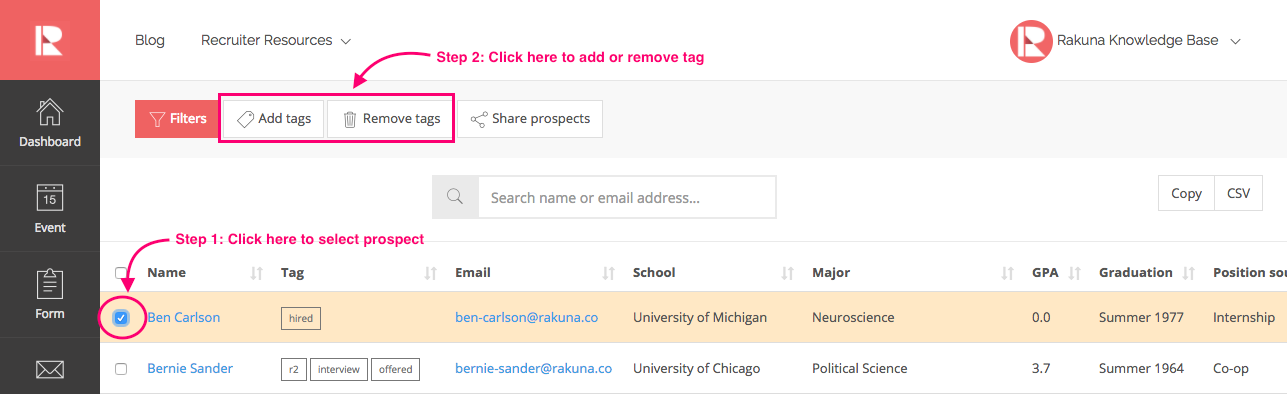
How can I add or remove tag to/from each prospect?
Tagging is an efficient way to categorize your candidates and help keep track of candidate statistics throughout the hiring process. Users with Admins & Reviewers permission can use the tagging feature and collaborate with each other and other recruiters. For example: You can share several candidates with a hiring manager, and he/she can tag each candidate with a “Yes” or a “No” to indicate whether he/she would like to continue consider the candidates.
To add or remove tag:
- Select prospect
- Click the second box “Add tags” or the third box “Remove tags”
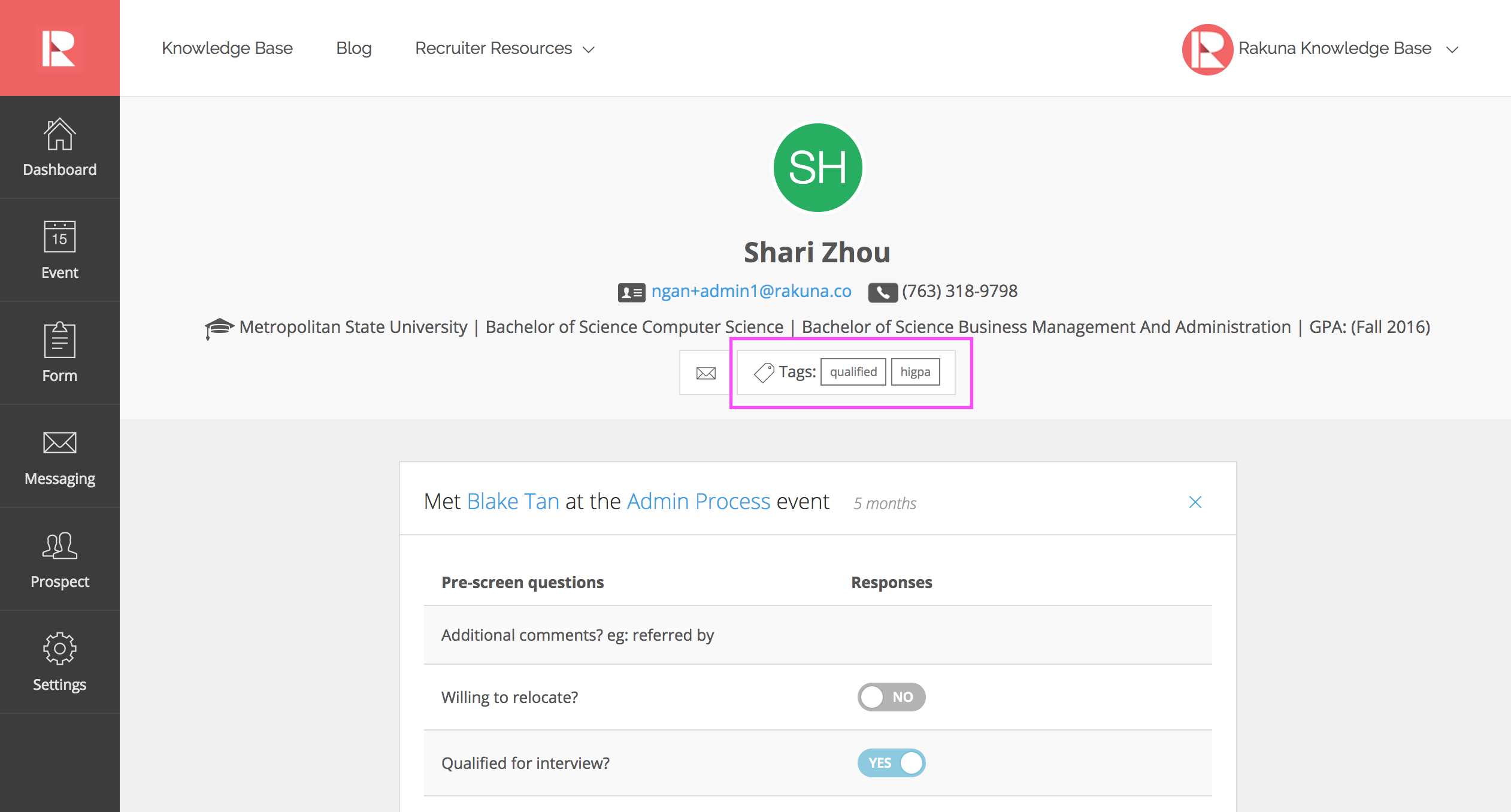
You can also tag the candidate by going into each candidate’s profile. This is likely what a reviewer would do when reviewing and making decision on each candidate.
How can I add comment for each candidate?
Commenting is another way for the recruiting team to collaborate when reviewing candidates. You can leave extra note on a candidate for other hiring manager so when they also review the candidate, they know what is special about that candidate.
To use the comment feature:
- Open a candidate’s profile
- Scroll to the end of the candidate profile to leave your comment