Edit/Delete an Event
How do I edit an existing event?
How do I change the timezone of my event?
How do I delete an event?
How do I edit an existing event?
Note: Once published, an Event CANNOT be edited. An Event can only be edited when it is in the DRAFT mode.
- Go to “Event"
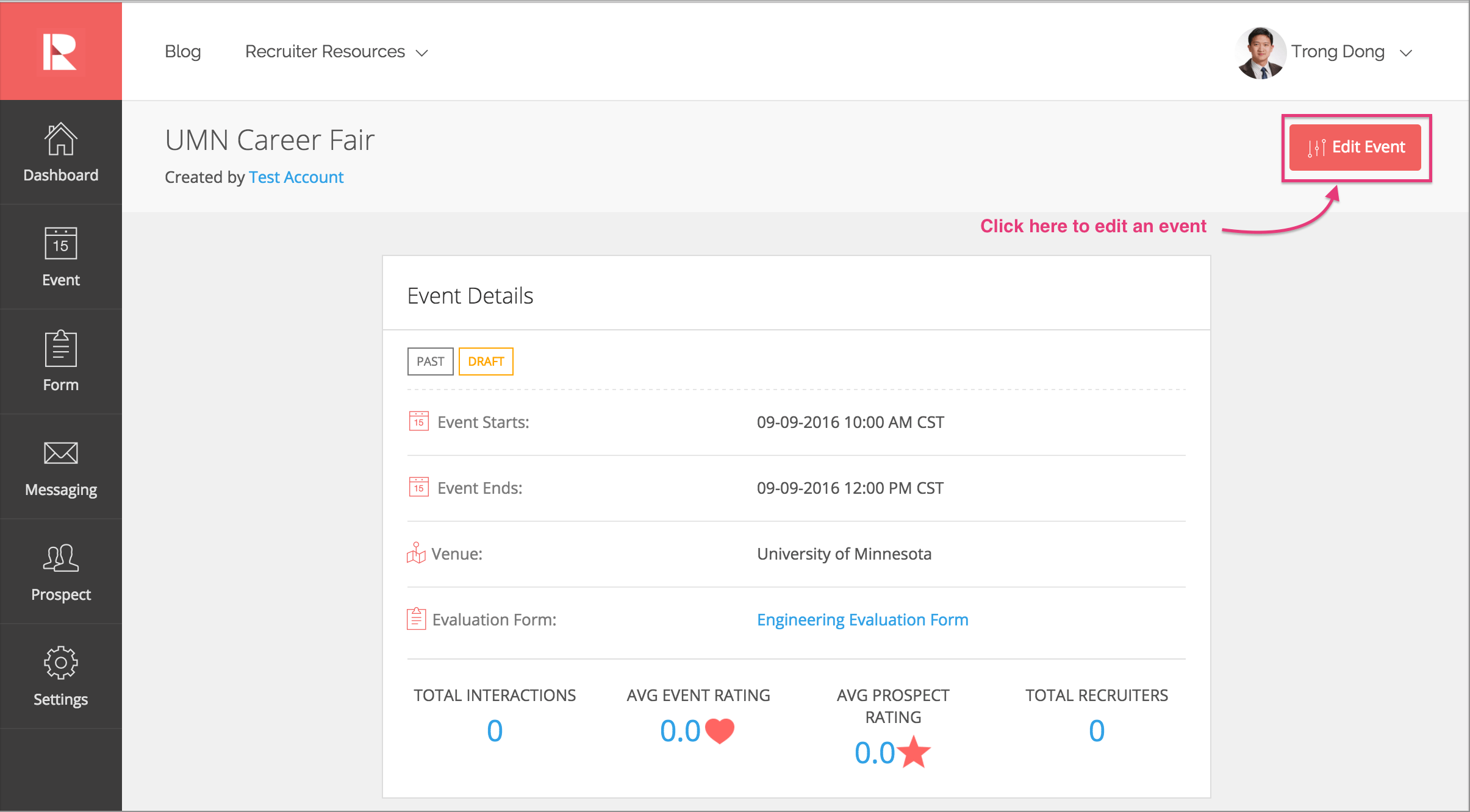
- Open the draft event (it has the yellow “Draft” tag) and click the red “Edit Event” button on the top right corner of the screen
- Edit the event as needed
- Click “Save as Draft” to save changes or “Make Event Live” when the event is ready to be published
How do I change the timezone of my event?
- Go to “Event”
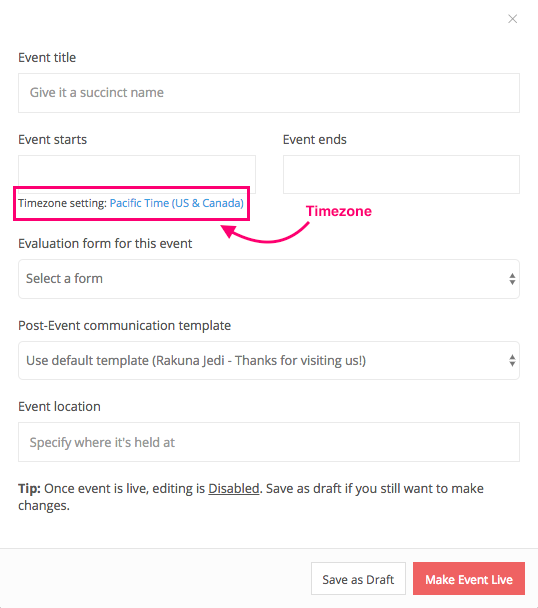
- Open the draft event and click “Timezone setting” (under the “Event Starts” box)
- Change the time zone as needed (the default time zone for all events is UTC)
How do I delete an event?
- Go to “Event”
- Click the red “Edit Event” button on the top right corner of the screen
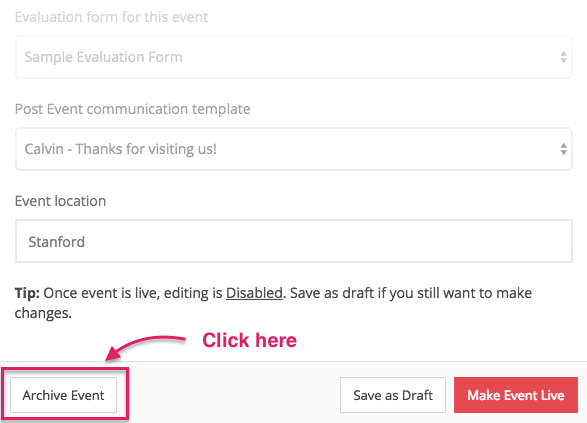
- Click “Archive Event” to delete event
Note: Deleting an event will not delete students’ and candidates’ information from the event. They will still appear on the Prospect page.