Create an Event
How do I create a new Event?
What happens after creating an event?
What data can I see from an event and How can I see it?
How do I create a new Event?
An Event is a career or recruiting event that is held at a specific venue and is an opportunity for companies to meet prospective candidates. On the Rakuna app, “Event” works like a ‘folder’ for recruiters to capture and store prospects’ data.
To create an Event:
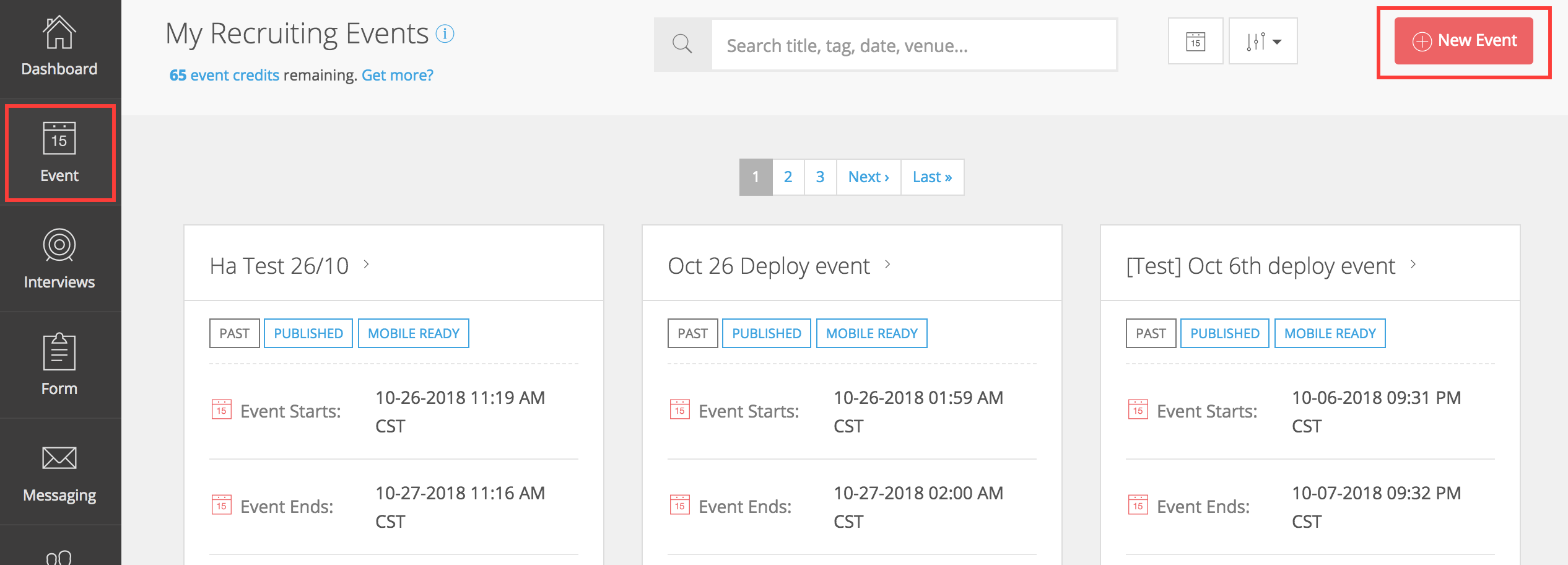
- Navigate to the “Event” page by clicking the “Event” button;
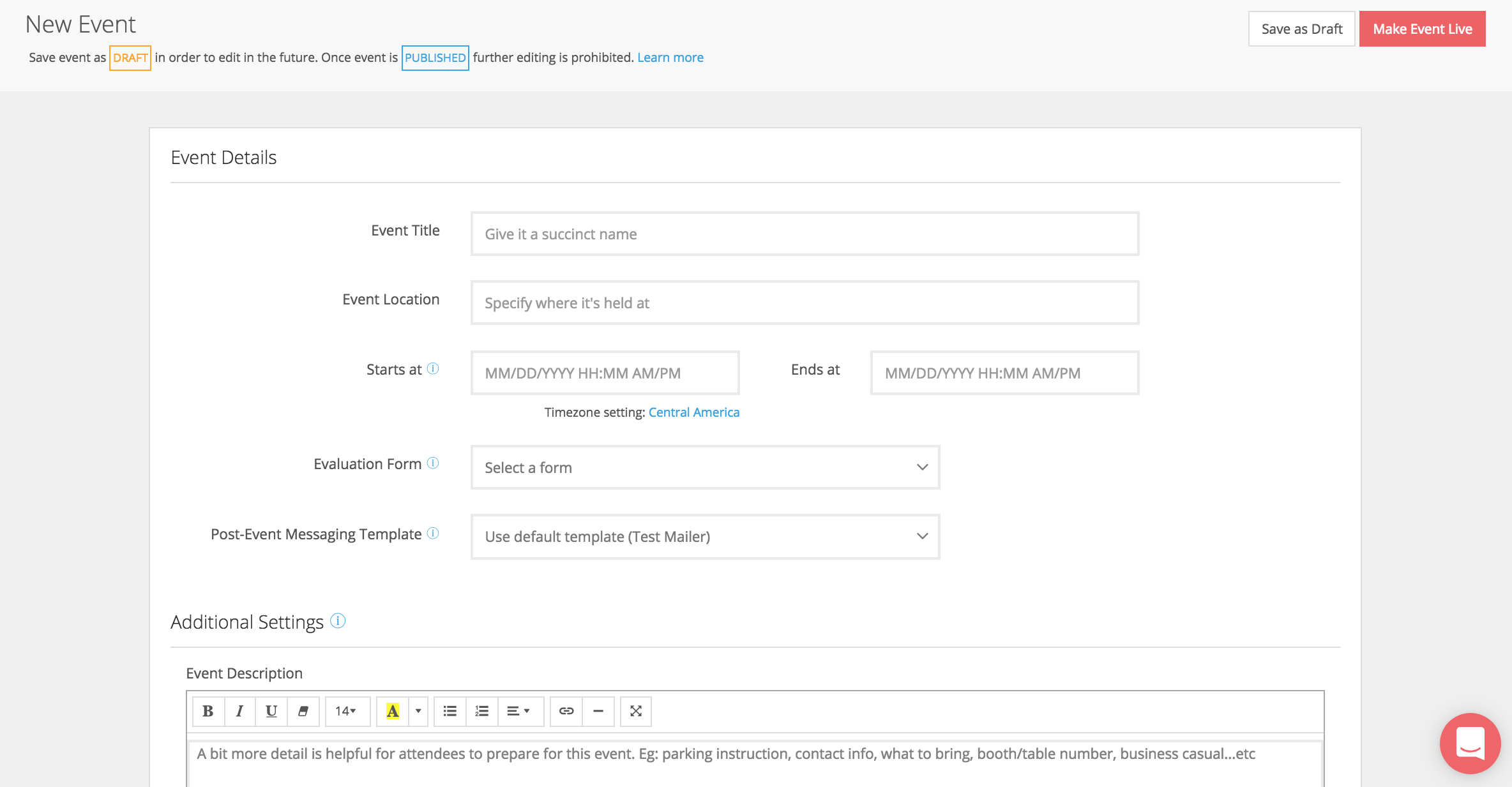
- Click the red “New Event” button on the top right corner of the screen and fill out the necessary information.
Note:
- Each Event will need to have an assigned form as well as a post-event message. To create a new form or custom post-event messaging template, please check out the sections on Forms and Messaging;
- Make sure to save your event as a DRAFT if the details of the event are not finalized yet. Once you make an event go live, the event will be in PUBLISHED mode and can no longer be edited.
What happens after creating an event?
After creating and publishing an event, it will be “Mobile Ready” (the Event detail page will have a “Mobile Ready” tag), meaning you can view it on the Mobile App.
Another feature added alongside with Event is “Pre-Event Registration Link” which allows candidates and participants to check-in and upload their resumes before attending the event.
What data can I see from an event and How can I see it?
- Go to “Event”, click on the specific event you are inquiring.
- In the Event dashboard, you will see insights from the recruiting event, including:
- Total interactions: How many candidates captured;
- Average event rating: How candidates feel about your events;
- Average prospect rating: What is the recruiter’s average rating of the candidates met at the event;
- Total recruiters: The number of staff using the app at the event.