About Mobile App
Why do I need the Mobile app? Can’t I just access the Rakuna app from my mobile web browser?
Can I use this app without any internet connection?
How do I log out?
What else can I do on my Mobile App?
Why do I need the mobile app? Can’t I just access the Rakuna app from my mobile web browser?
Signing into Rakuna from your mobile web browser will only let you access features offered by the web app. Thus, to fully take advantage and optimize the features of Interview Scheduling that the mobile app can offer, we highly recommend users to use the mobile app on your mobile devices.
To see the differences between the mobile and web app (the Dashboard), please check Users & Roles.
Can I use this app without any internet connection?
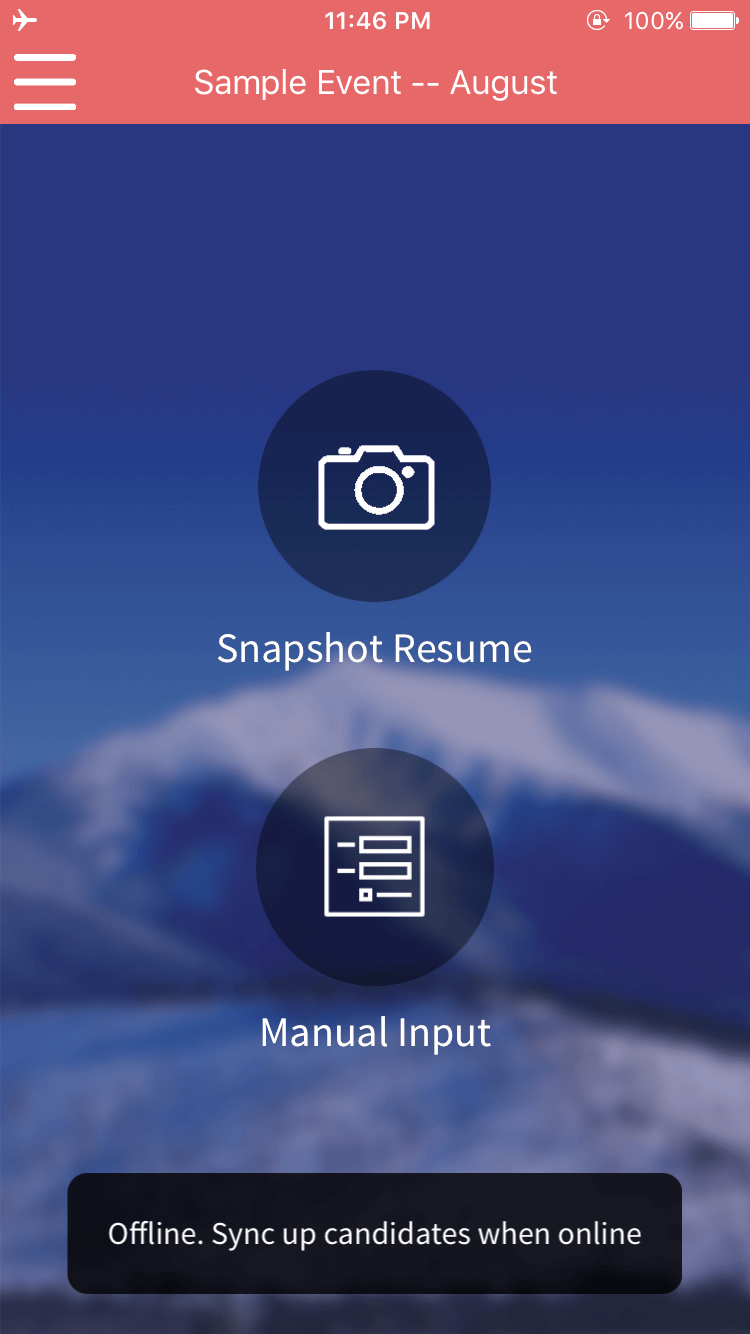
Internet connection is not required if you have already logged into the app at some point. You will still be able to input and edit a candidate’s information as usual. However, the information will only be saved locally on your device.
To sync an event’s information and upload to the web app:
- Open up “My Candidates”
- Tap the cloud icon in the top right whenever internet connection is regained.
Note: You will not be able to log in or out of the app while being offline. We advise setting up the correct user account in advance to avoid issues with connectivity.
How do I log out?
- Open up an Event and choose “Settings” in the left sidebar menu.
- Tap “Sign out of Rakuna.”
Note: You will not be able to log out without an internet connection.
What else can I do on my Mobile App?
- Change Logo: To change the logo on the Login screen to your liking, head to your web “Dashboard Settings” and edit your “Organization Profile”. There you can upload a picture as a logo for your Organization.
- Change Theme: You can change the theme and color scheme of the app by going to “My Settings” and choose “Theme and colors”. There you are able to choose one of the four themes and color presets for the mobile app.
- Rate Rakuna: Rate and send us feedback on the mobile app by tapping the “Rate Rakuna” button in “My Settings” menu. This will redirect you to Rakuna on Apple App Store or Android Play Store.