Organization Permission levels
What are the different “levels”?
How do I change my permission level?
When do permission levels get initially decided?
What are the different “levels"?
An account can have three different permission levels: (1) Admin, (2) Reviewer, or (3) Mobile.
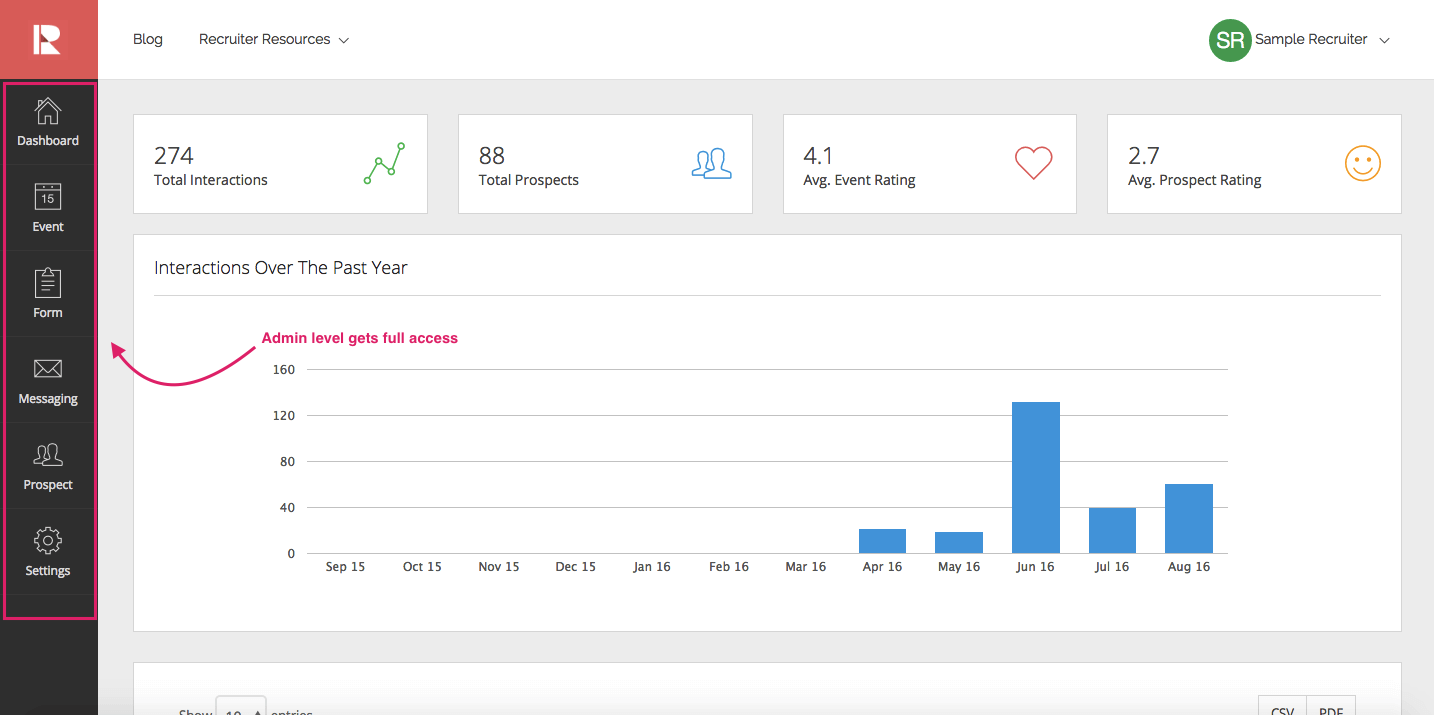
(1) Admin – This permission level grants full access to both the mobile app and web app. An Admin can create and edit Events, Forms, and Messaging/Email templates, and view all candidates and organization data via the Dashboard. In addition, an Admin can also invite or remove members from the organization, edit team members’ permission levels, and purchase Event Credits.
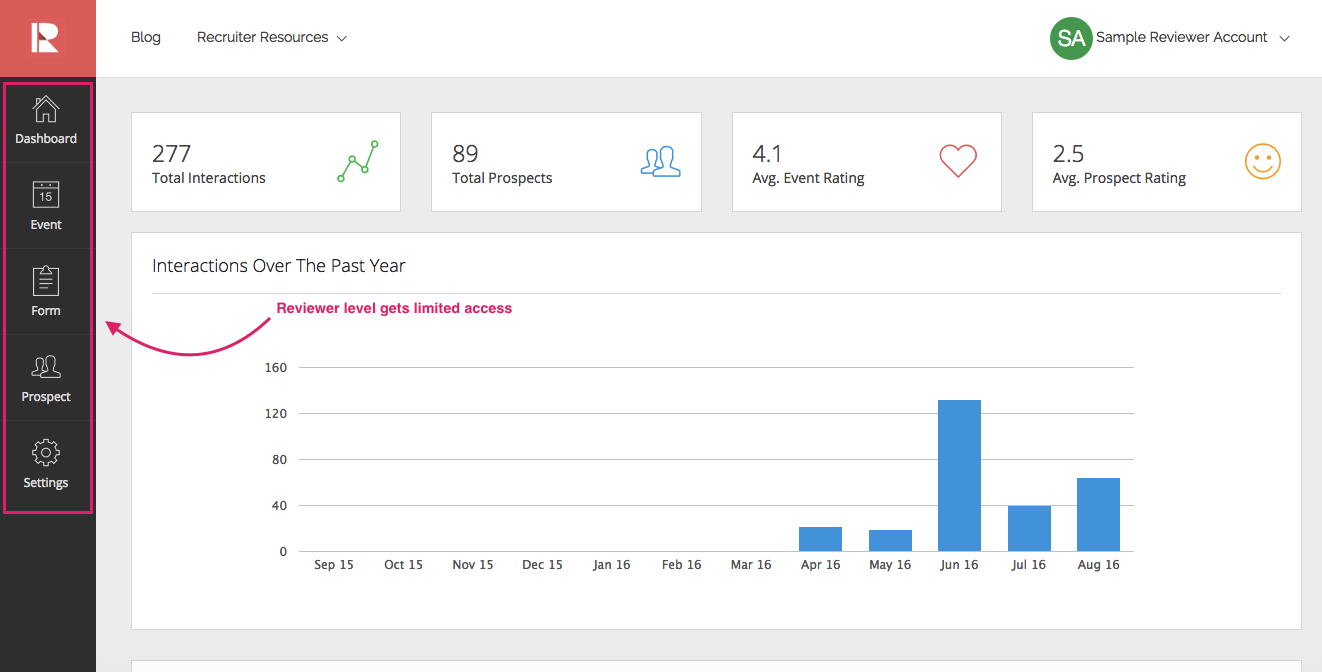
(2) Reviewer – This permission level grants full access to the mobile app and limited access to the web app. Reviewer users are usually the talent acquisition leaders who need access to dashboard to review event recruiting metrics, or hiring managers who can have access to candidates’ information to select who they would like to interview, tag, and leave comments on specific candidates. A Reviewer can view candidate’s information, published Events, Forms, and Messaging templates, but cannot edit.
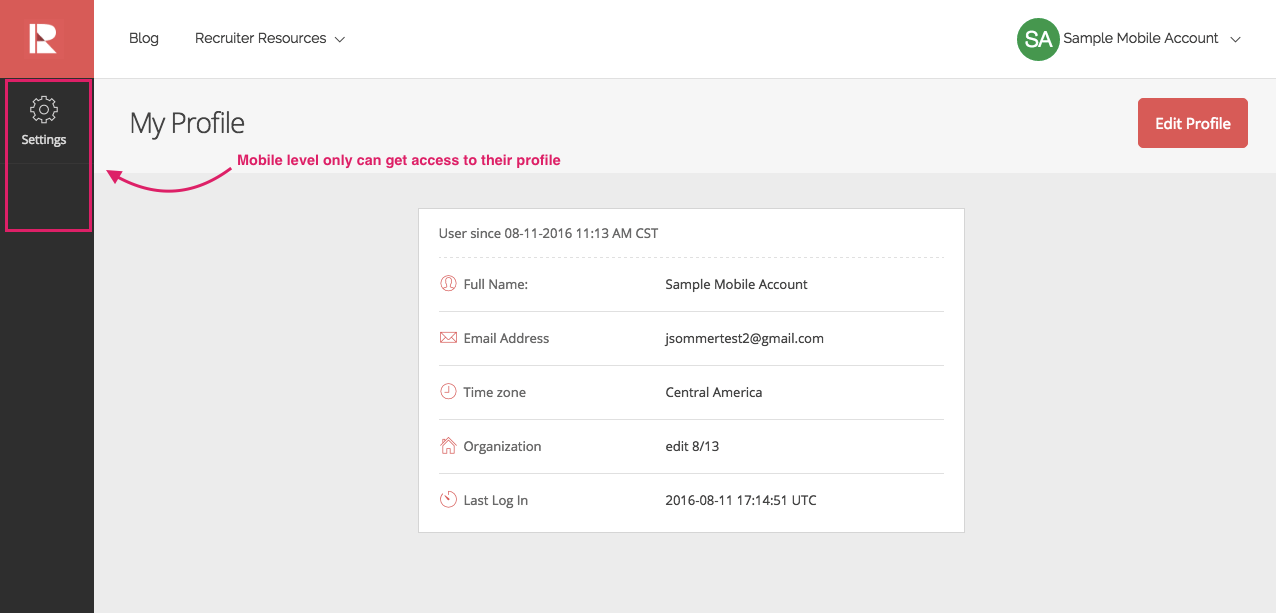
(3) Mobile – This permission level grants full access to the mobile app only. A Mobile user only has access to “Settings” on the web app.
When do permission levels get initially decided?
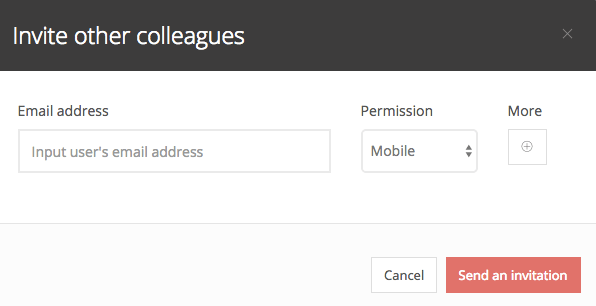
The creator of a new organization will automatically be assigned as an Admin. When sending invites to members to join their organization, Admin can choose the permission level for each account accordingly.
How do I change my permission level?
Note: Only Admin can change the permission level.
To change:
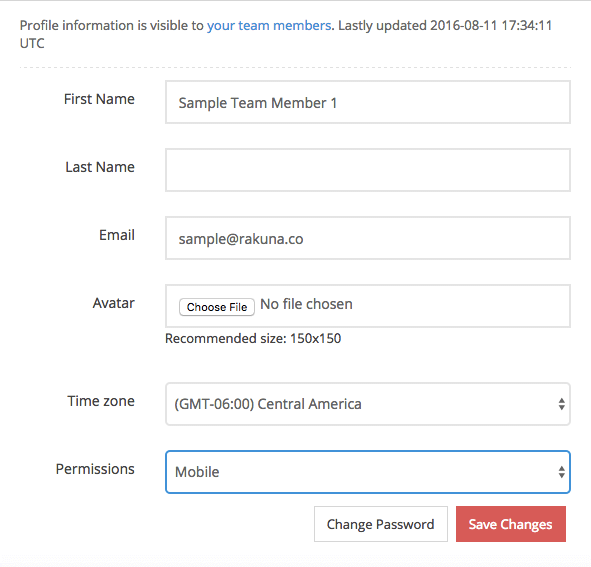
- Go to “Settings,” then “Team Directory,” then click “Edit Profile.”
- Select the account to change its permission level.